
Find out how to unlock Dell Bios password on Laptop & Notebook, supported models are Dell: Alienware, Inspiron, Latitude, Precision, XPS, Vostro, Venue, Optiplex, G series, Studio, Wyse.
How to unlock Bios password
Determining what kind of Bios password is needed?
regardless of what kind of Dell Laptop, Desktop, Tablet or Notebook model you have, first thing you need to do is to find out if the laptop shows some kind of code before or after you enter 3 wrong passwords, and take notes of that code and messages given, once you have that information, go to the links below and see if your computer or Laptop model is supported and unlockable by Bios or HDD master password.
How to Unlock Dell Bios password?
( 1 ) If you already have the Bios Master Password we sent you, restart your computer, and press the F2 Key every second to access the Bios setup page,
( 2 ) Once inside Bios follow these instructions to reset bios: navigate to the
( Security tab )
Then go to:
( Passwords tab )
take a look at the:
Admin password status, see if password is installed
System password status, see if password is installed
HDD password status, see if password is installed
Know that the Dell BIOS Master password we sent you will unlock Administrator and System password, but hdd password will be different since it is a different hardware,
( 3 ) Now that you already know what passwords are set, and understand what the password is used for,
let's talk about how you can disable the:
( Admin password )
Select the Admin password option, look for the option:
( Unlock )
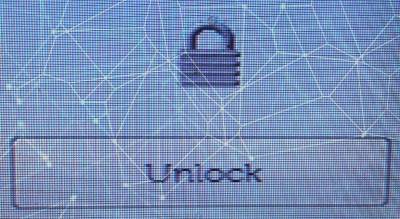
and type the password we sent you respecting upper and lower case if any,
and press enter to unlock setup,
Once again select the admin password option, type the system or admin password we sent you in the first field where it says: Enter Old Password

leaving the other two fields empty and press ok, this will disable the admin password.
See also our Windows password & Bios password solution:
Dell System or Administrator Password
Biospro main sitemap
How to unlock Dell System Disable Password
Dell System Disable Password
Footer Banner Section
Open from 8:00 AM to 11:00 PM - NY Time Zone
From Monday through Monday
for any question or doubts, contact us via email at:
pcsecuritysupport2026
@gmail.com

Contact us
by whats app.
©2009 - biospro.com